
Last Updated on February 1, 2026 by Oktay Sari
Let’s be real: Homebrew is amazing. It’s the missing package manager for macOS that every developer loves. However, in an enterprise environment, Homebrew can also be a security nightmare waiting to happen. World-writable binaries? Third-party taps from who-knows-where? Supply chain attacks through git remote hijacking? Yeah, that’s exactly what keeps security teams up at night. ☕
If you’re managing a fleet of Macs through Microsoft Intune, you need visibility into what Homebrew is doing on those machines. Therefore, I built a comprehensive security audit script that scans for real threats and reports findings through Intune custom attributes. This Homebrew/Intune integration gives you the compliance visibility you’ve been missing.
In this guide, I’ll walk you through the security risks, the detection methods, and the complete deployment solution. Whether you’re just starting to think about Homebrew security in your Intune environment or you’re looking for a production-ready toolkit, this guide has you covered.
Grab your Terminal windows and buckle up. This is going to be a ride. 🚀
TL;DR: What You Get From This Post
- A production-ready bash script that audits Homebrew security and reports to Intune custom attributes
- Detection for world-writable binaries, supply chain compromises (git remote hijacking), and third-party tap sprawl
- Complete deployment guide with phased rollout strategy
- Dashboard filters and response playbooks for when findings appear
- Links to official Homebrew and Microsoft documentation
Who This Is For
| Reader | What to focus on |
| macOS + Intune admins | Read the full post, especially deployment and troubleshooting |
| Security architects | Focus on the risk sections, supply chain detection, and dashboard filters |
| Developers | Read the supply chain and social engineering sections to understand the threat model |
Table of Contents
- Why Homebrew Security Matters in Enterprise Environments
- Introducing the Homebrew Security Audit Script for Intune
- The Security Checks Explained
- Deploying the Script Through Intune
- Responding to Findings
- Troubleshooting Common Issues
- Security Score Reference
- Resources and Documentation
- GitHub repository
A Note on Threat Models: Standard vs. Admin Users
Let’s be clear: I am not bashing Homebrew. It is an indispensable tool that powers the modern macOS development workflow. I use it daily, and I know that trying to ban it in an engineering organization can feel like a losing battle. The goal of this toolkit is to enable safe usage, not to block it.
This guide focuses on that specific intersection: Managed Macs where the user is a Local Admin. In this context, Homebrew’s user-centric design effectively bypasses the “safety rails” that enterprise security teams rely on. The combination of Local Admin rights + Homebrew can create a “perfect storm” where a compromised package can potentially modify system paths or install persistent services without further authentication.
Why Homebrew Security Matters in Enterprise Environments
The Developer’s Best Friend, The Security Team’s Headache
Homebrew was designed for individual developers who want to install packages quickly. It wasn’t built with enterprise compliance in mind. As a result, several security risks emerge with Homebrew deployed across a Mac fleet. Understanding these risks is key.
First, there’s the file permission problem. Homebrew installs packages to /opt/homebrew (Apple Silicon) or /usr/local (Intel), and these directories can end up world-writable. Anyone with local (admin) access could tamper with binaries that your users trust. Imagine a malicious insider modifying the curl binary to exfiltrate data. That’s the nightmare scenario, and it’s entirely preventable with proper monitoring.
Second, you have third-party tap sprawl. Taps are Homebrew’s way of adding additional package repositories. While homebrew/core and homebrew/cask are official, anyone can create a tap. Your developers might be pulling packages from repositories maintained by random GitHub users. That’s a supply chain risk waiting to happen. In fact, I’ve seen environments with 15+ third-party taps, most of which nobody remembers adding.
Third, and this is the scary one, there’s git remote hijacking. Homebrew repositories are just git repos. If an attacker can change where those repos pull from, they can inject malicious code into your package updates. This is a real supply chain attack vector that most organizations don’t monitor. It’s also the hardest to detect without specialized tooling.
Fourth, there’s the outdated package problem. Security-critical packages like OpenSSL, curl, and git get updates regularly. However, Homebrew doesn’t auto-update packages by default. Your fleet might be running vulnerable versions of critical libraries without anyone knowing.
The Developer Privilege Problem
Here’s where it gets interesting: developers typically have local admin rights on their macOS devices. This is often necessary for their work. They need to install development tools, run debuggers, configure local services, and do the hundred other things that require elevated privileges.
Local admin rights combined with Homebrew creates a unique attack surface. According to the official Homebrew documentation, the initial installation requires admin privileges, but after that, Homebrew is designed to work without sudo. The docs explicitly state that Homebrew installs to its default prefix so that you don’t need sudo after installation.
Can standard users use Homebrew without admin rights? Yes and no. Here’s what the Homebrew FAQ tells us:
- Initial installation requires admin privileges to create the /opt/homebrew or /usr/local directory structure
- After installation, most brew install commands work without sudo
- Cask applications that use .pkg installers may still require admin rights
- Users can technically install Homebrew in their home directory without admin rights, but this is unsupported and many precompiled bottles won’t work
The Social Engineering Angle: Why Developers Are Prime Targets
Think about this from an attacker’s perspective. Finding developers at a specific company is trivially easy. A simple LinkedIn search for “software engineer at [Company X]” returns dozens of profiles, often with detailed information about their tech stack, projects, and even the tools they use.
Open-source intelligence (OSINT) techniques make this even easier. Attackers use tools like Maltego to map organizational structures, identify key personnel, and gather intelligence for targeted attacks. According to security researchers, LinkedIn profiles often reveal enough information to craft highly convincing spear-phishing campaigns.
Here’s a typical attack scenario:
- Reconnaissance: Attacker searches LinkedIn for developers at target company
- Profiling: Reviews profiles for tech stack (macOS mentioned? Python? Node.js? These suggest Homebrew usage)
- Targeting: Identifies developers with possible local admin access (look for clues on LinkedIn profile and job description to start with)
- Delivery: Sends phishing email with malicious Homebrew tap or package recommendation
- Execution: Developer installs compromised package, attacker gains foothold
The 2020 Twitter hack (very good read) is a sobering example. Attackers used publicly accessible information, including screenshots and job postings, to understand internal workflows and craft targeted social engineering attacks against support employees. No exploits needed. Just public data and manipulation.
For your Mac developers with Homebrew and local admin rights, the attack surface is significant. Monitoring what Homebrew is doing on those machines isn’t paranoia. It’s prudent security practice.
Introducing the Homebrew Security Audit Script for Intune
The script I’m about to share has been tested across multiple environments. Currently at version 3.0.2, it represents months of iterative development and real-world testing. The changelog in the GitHub repository documents the full journey, but let’s focus on what you get today.
What Makes This Different
This script understands Homebrew’s architecture. It checks git remotes without corrupting file ownership, distinguishes official taps from third-party ones, and was built from the ground up for MDM deployment.
Here’s what the script checks:
| Category | Check | Risk Level | Why It Matters |
| Filesystem | Brew binary permissions | CRITICAL | World-writable binary = direct code execution risk |
| Filesystem | Directory ownership | HIGH | Wrong owner indicates tampering or misconfiguration |
| Filesystem | World-writable directories | CRITICAL | Any writable path in Homebrew tree = injection point |
| Supply Chain | Git remote validation | HIGH | Non-Homebrew remotes = actual source compromise |
| Supply Chain | RC file overrides | MEDIUM | HOMEBREW_*_GIT_REMOTE exports signal intent to redirect |
| Supply Chain | Third-party tap count | MEDIUM/HIGH | Tap sprawl increases attack surface |
| Packages | Outdated critical packages | MEDIUM | openssl, curl, git with known vulnerabilities |
| Packages | Cask inventory | INFO | Asset tracking for compliance reporting |
Design Principles That Are Non-Negotiable
These rules are baked into the script. For details on why each matters, see the deployment guide on GitHub.
| Principle | Why |
| Never run brew as root | Corrupts file ownership; use su to console user instead |
| Always output key=value to stdout | Intune parses stdout; diagnostics go to stderr/log |
| Always exit 0 | Exit 1 means “script failed to run”, not “found security issues” |
| Fail safe | Even on catastrophic error, output something useful |
The Security Checks Explained
Now let’s dig into what the script actually checks and why each check matters for Homebrew security in Intune managed environments.
Filesystem Security: The Foundation
The first category of checks focuses on filesystem permissions. These checks run regardless of whether a user is logged in, because they examine the files themselves rather than running Homebrew commands.
Brew Binary Permissions
The script checks whether the brew binary is world-writable. If anyone on the system can modify the brew binary, an attacker could replace it with a malicious version. This is a CRITICAL finding because it represents a direct path to code execution.
# Check if brew binary is world-writable
perms=$(stat -f '%Lp' "$BREW_BIN")
if (( (perms & 2) != 0 )); then
log_critical "Brew binary is world-writable!"
fi
Directory Ownership
Homebrew directories should be owned by the user who installed Homebrew, not root. Wrong ownership creates permission conflicts and can indicate tampering. The script identifies the expected owner based on the console user and flags mismatches.
World-Writable Directories
Beyond the binary itself, the script scans Homebrew’s directory structure for world-writable paths. Any directory in the Homebrew tree that’s world-writable represents a potential injection point.
Supply Chain Security: The Real Threat
Supply chain attacks are the sophisticated threats that keep security professionals awake at night. Rather than attacking your software directly, attackers compromise the tools you use to build and deploy software. Homebrew is a perfect target for supply chain attacks, which is why these checks are so important.

Git Remote Validation: The Source of Truth
This is the strongest signal in the entire script. Homebrew’s core functionality depends on git repositories. The script checks the actual git remote URLs for:
- The main Homebrew repository (brew –repository)
- The core tap (homebrew/core)
- The cask tap (homebrew/cask)
Expected remotes look like https://github.com/Homebrew/... or git@github.com:Homebrew/…. Anything else means someone has changed where Homebrew pulls its packages from. This is a HIGH severity finding because it represents actual compromise, not just configuration risk.
# Check git remote for the brew repository
origin=$(git -C "$brew_repo" remote get-url origin 2>/dev/null)
if ! echo "$origin" | grep -qiE '^(https://github\.com/Homebrew/|git@github\.com:Homebrew/)'; then
log_high "Supply chain risk: brew repo origin is non-Homebrew ($origin)"
fi
In earlier versions of the script, I tried checking environment variables like HOMEBREW_BREW_GIT_REMOTE. However, I learned that environment variables show configuration intent, not actual state. The git remote shows where packages actually come from. That’s why git remote validation became the primary supply chain signal.
RC File Override Detection
As a secondary signal, the script also checks shell RC files (.zshrc, .bashrc, .zprofile, etc.) for exports of HOMEBREW_*_GIT_REMOTE variables. While these don’t prove compromise, they indicate someone has configured Homebrew to pull from non-standard sources. This warrants investigation.
Third-Party Tap Assessment
Taps extend Homebrew’s package catalog. Official taps like homebrew/core and homebrew/cask are maintained by the Homebrew team. Third-party taps could be maintained by anyone.
The script counts third-party taps and assigns risk levels:
| Third-Party Taps | Risk Level | Description |
| 0 | Low | All official taps |
| 1-4 | Medium | Some third-party taps present |
| 5+ | High | Tap sprawl detected |
Five or more third-party taps usually indicates developers are installing packages from many different sources. This “tap sprawl” increases your attack surface significantly.
The “Eviction” Effect: Why Taps Are Becoming Riskier
It is important to understand how recent Homebrew security changes (specifically the deprecation of the –no-quarantine flag) unintentionally increase the risk of third-party taps.
Software that gets kicked out of the official repository doesn’t disappear; it moves to Third-Party Taps. Malware authors and developers of unsigned software will increasingly force users to “tap” their private repositories to install their tools.
This means your users are now more likely to face social engineering attacks: “To install this tool, just run brew tap random-dev/tools first!” Once a user adds that tap, they have effectively bridged a trust gap that the Homebrew maintainers explicitly closed. This makes detecting Tap Sprawl (which this audit script does) not just a hygiene metric, but a critical early warning system for unvetted software sources.
Homebrew version 5.0.0 deprecation of “–no-quarantine” and –quarantine

Read more here: https://brew.sh/2025/11/12/homebrew-5.0.0/
Package Security: The Obvious Stuff
Finally, the script checks for outdated security-critical packages. Packages like openssl, curl, git, and python have security implications if they’re out of date. While Homebrew doesn’t automatically update packages, the script identifies when these critical packages need attention.
Deploying the Script Through Intune
Now that you understand what the script does and why it works the way it does, let’s talk deployment. Getting Homebrew security auditing into Intune requires the main script plus custom attribute scripts to surface the data. I recommend a phased rollout approach to minimize risk and maximize learning.
Rollout Strategy: Don’t YOLO It
Before you deploy to your entire fleet, consider a phased approach. Start with 5-10 pilot devices, expand to your IT team, then gradually roll out to production. This gives you time to understand what normal looks like and catch edge cases before they affect everyone. The deployment guide on GitHub has detailed week-by-week phases.
Upload the Main Script
First, upload the main script to Intune:
- Navigate to Devices > macOS > Shell scripts
- Upload homebrew_security_check_intune_v3_0_2.sh (or newer version)
- Configure these settings:
- Run script as signed-in user: No (run as System)
- Hide script notifications: Yes
- Script frequency: Daily (or your own preference)
- Max retries: 3
The Root Problem (Pun Intended)
When you deploy a shell script through Intune with “Run script as signed-in user” set to No (the default), that script executes as root. This is great for system-level changes like installing packages or modifying configurations. However, Homebrew explicitly refuses to run as root, and for good reason.
If you run brew install or brew update as root, Homebrew will either refuse outright or corrupt the file ownership of everything in /opt/homebrew. Files that should be owned by your user become owned by root. Now the actual user can’t update packages, can’t install new ones, and you’ve created a mess that requires manual cleanup.
The su Trick: Why It Works
Here’s where Unix permissions come to the rescue. When a process is running as root, it can use su (substitute user) to execute commands as any other user without requiring that user’s password. This is a fundamental Unix behavior, not a macOS quirk or a security hole.
# Running as root, this requires NO password:
su - "$CONSOLE_USER" -c "/opt/homebrew/bin/brew list"
The script detects the currently logged-in console user via scutil, then uses su to run Homebrew commands in that user’s context. The files stay owned by the correct user, Homebrew stays happy, and Intune gets its scheduled execution.

What Happens When Nobody Is Logged In?
If the Mac is at the loginwindow (no user logged in), there’s no console user to su into. Running Homebrew commands will fail.
The script handles this gracefully:
- Filesystem checks still run because those don’t require Homebrew
- Homebrew commands are skipped with appropriate logging
- The scan is marked INCOMPLETE so dashboards show partial results
- CRITICAL findings still bubble up even from partial scans
- The script still exits 0 so Intune doesn’t mark it as failed
This means you get whatever security data is available, clearly labeled as incomplete, rather than either false positives or complete failure.
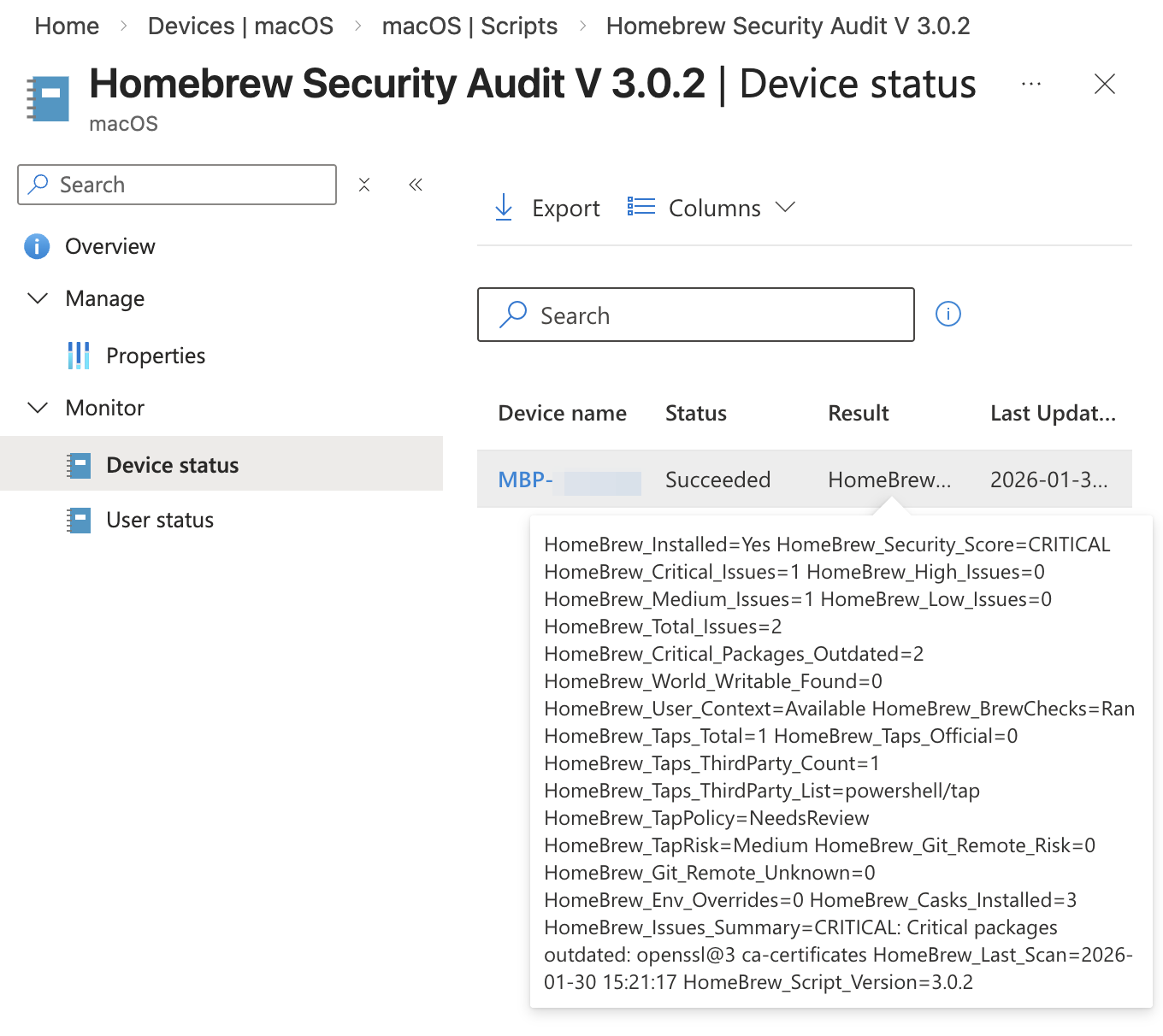
The Minimal Core Approach: 8 Attributes That Matter
You could deploy all 24 attributes the script generates, but I recommend starting with the minimal core. These 8 attributes cover 90% of security use cases with much less administrative overhead.

| Attribute | What It Tells You | Use Case |
| HomeBrew_Installed | Whether Homebrew is present | Basic inventory |
| HomeBrew_Security_Score | Rolled-up verdict: SECURE, LOW_RISK, MEDIUM_RISK, HIGH_RISK, CRITICAL, INCOMPLETE, or N/A | Dashboard filtering and compliance |
| HomeBrew_Critical_Issues | Count of critical findings | Main alert trigger |
| HomeBrew_World_Writable_Found | World-writable filesystem issues detected | The scariest finding |
| HomeBrew_Git_Remote_Risk | Count of non-Homebrew git remotes | Supply chain compromise indicator |
| HomeBrew_TapRisk | Low, Medium, or High based on third-party tap count | Third-party risk assessment |
| HomeBrew_Last_Scan | Timestamp of last scan | Staleness detection |
| HomeBrew_Issues_Summary | Human-readable explanation | Quick triage without SSH access |
Each custom attribute is a tiny script that reads from the state file:
#!/bin/bash
python3 - <<'PY'
import json
p="/Library/Logs/Microsoft/IntuneScripts/HomebrewSecurity/state.json"
try:
  d=json.load(open(p))
  print(d.get("security_score","Unknown"))
  except Exception:
  print("Unknown")
  PY
Filtering and Monitoring Your Fleet
Once the attributes are flowing into Intune, you can monitor your fleet through the Device Status view. Navigate to Devices > macOS > Custom attributes, select your profile, and click Device Status. Use the Columns button to show only what you need.

High Priority Filters (investigate immediately):
| Filter | Condition |
| Critical findings | HomeBrew_Security_Score equals CRITICAL |
| World-writable files | HomeBrew_World_Writable_Found greater than 0 |
| Supply chain risk | HomeBrew_Git_Remote_Risk greater than 0 |
Fleet Health Filters:
| Filter | Condition |
| Fully compliant | HomeBrew_Security_Score equals SECURE |
| Partial scan only | HomeBrew_Security_Score equals INCOMPLETE |
| Homebrew not installed | HomeBrew_Installed equals No |
Watch the supply chain filter like a hawk watching a mouse wearing an “Eat Me” t-shirt. These compromises are rare but devastating.
Responding to Findings: What to Do When the Dashboard Lights Up
Having visibility is great, but you also need playbooks for when things go wrong. Here’s how to respond to different finding types.
Responding to CRITICAL Findings
CRITICAL findings require immediate investigation. These include world-writable brew binaries and supply chain compromises.
For world-writable binaries: Fix permissions immediately (sudo chmod 755 /opt/homebrew/bin/brew), investigate how this happened, and consider re-installing Homebrew from scratch if tampering is suspected.
For supply chain compromise (non-Homebrew git remotes): Do not run any Homebrew commands until you understand what’s happening. Check the git remote, assume compromise if it points somewhere unexpected, wipe and re-image the device if confirmed, and report through your security incident process.
Responding to HIGH Findings
HIGH findings indicate serious issues that need prompt attention but aren’t necessarily active compromise.
For ownership issues: Fix ownership with sudo chown -R username:staff /opt/homebrew and investigate why it changed.
For tap sprawl: List all taps (brew tap), research each third-party tap, remove unnecessary ones (brew untap tap-name), and document approved taps for your organization.
Responding to INCOMPLETE Status
INCOMPLETE means the script couldn’t run all checks because no console user was logged in. This is normal at the loginwindow or during FileVault pre-boot. The script will automatically perform a complete scan when a user logs in. If a device consistently shows INCOMPLETE, investigate whether it’s being used headlessly.
Troubleshooting Common Issues
Even with careful design, things go wrong. Check the deployment guide and README on GitHub for troubleshooting tips covering common scenarios like missing state files, INCOMPLETE scores, and Intune “Failed” status.
Security Score Reference
Here’s what each security score means and what action you should take:
| Score | Meaning | Action Required |
| SECURE | All checks passed | None needed |
| LOW_RISK | Minor issues only | Review when convenient |
| MEDIUM_RISK | Third-party taps or env overrides | Review taps and RC files |
| HIGH_RISK | Ownership issues or tap sprawl | Investigate promptly |
| CRITICAL | World-writable or supply chain compromise | Immediate response |
| INCOMPLETE | Brew checks skipped (no user) | Re-run when user logged in |
| N/A | Homebrew not installed | None needed |
| ERROR | Script failed | Check logs and state file |
Pro tip: CRITICAL findings represent actual security incidents, not just configuration drift. Prioritize these during your regular device reviews. For automated alerting, you’ll need to export attribute data via Graph API to a SIEM or monitoring solution.
The Development Journey: Many Iterations, Many Lessons
I won’t bore you with a complete version history. If you’re curious about every bug fix and iteration, there’s a dedicated changelog file in the repository.
What I will say is this: building enterprise-ready scripts is humbling work. Every version taught me something new about edge cases, user context handling, and the quirks of running bash scripts through Intune. Code review alone doesn’t catch everything. Real-world testing with strict shell options enabled (set -euo pipefail) revealed bugs that only manifest in production contexts.
The current v3.0.2 represents months of iterative refinement. It’s 21% leaner than earlier versions because I removed checks that weren’t security-relevant (cleanup status, auto-update settings, analytics, doctor output). The result is a focused tool that does one thing well: find security issues in Homebrew installations.
Getting the Script and Resources
The complete toolkit is available on my GitHub repository. You’ll find:
- The main audit script (v3.0.2)
- Deployment guide with testing procedures
- Custom attribute scripts for both minimal and extended deployments
- Complete changelog documenting all bug fixes and iterations
Official Documentation
Homebrew Documentation:
- Homebrew Installation Guide – Official installation instructions and requirements
- Homebrew FAQ – Answers about sudo, permissions, and common questions
- Homebrew Common Issues – Troubleshooting permission problems and app installation
- Homebrew Security Best Practices – Official security recommendations
Microsoft Intune Documentation:
- macOS Shell Scripts in Intune – How to deploy and manage shell scripts
- macOS Custom Attributes – Creating custom device attributes
- macOS Device Restrictions – App restrictions and compliance settings
- macOS Endpoint Protection – FileVault, Firewall, and Gatekeeper settings
Community Resources
- Microsoft’s shell-intune-samples on GitHub – Official sample scripts from Microsoft
- Intune Stuff Blog – Comprehensive macOS Intune guides by my friend Joery Van den Bosch
- Intune in Real Life – Dive deep into macOS management with my friend Somesh Pathak
- Custom Compliance Policies for macOS – Max Weber’s approach to achieving compliance-like behavior using custom attributes and Azure Automation
Final Thoughts: Security Is a Journey
Implementing Homebrew security isn’t a one-time project. Package managers evolve, attack vectors change, and your fleet grows. The audit script gives you visibility, but you still need to act on what it finds.
Start with the minimal core deployment. Get comfortable with the collected information and learn what normal looks like for your environment. Then expand to additional attributes if you need granular compliance reporting.
Remember that security is a journey, not a destination. With Intune and this toolkit, you’ve got solid guardrails for that journey.
ALWAYS TEST in a controlled environment before deploying to production! Don’t just trust any script you find on the internet, including this one. Understand what it does and verify it works in your environment.
Questions? Found a bug? Want to contribute? Drop me a message or open an issue on GitHub. The community makes these tools better.
Until next time, stay secure! 🤠🔒
