
Last Updated on February 14, 2026 by Oktay Sari
Picture this; You open the Entra ID portal, search for one of your managed Macs, and find three device records staring back at you. One says “MacMDM,” another says “macOS,” and the third looks like it hasn’t checked in since last summer. Which one is real? Which ones are safe to delete? And how many more are hiding across your tenant? 😅 If you manage macOS devices with Microsoft Intune and have Platform SSO (PSSO) configured, duplicate device records are not a bug in your environment. They’re a feature of how Microsoft’s Device Registration Service works. Well, how it works when it doesn’t work…The problem? There’s no native way to find duplicate Mac devices in Entra ID and correlate them back to the physical hardware. Every PSSO registration creates a brand new device record. It never updates the existing one. When everything goes right, Intune cleans up the old record automatically. When things go wrong? You get orphans. Lots of them.

In this post, I’ll walk you through why I built this script, how it works under the hood, and how you can use it to find and clean up duplicate Mac device records in both Entra ID and Intune across your entire tenant.
🍎 𝗡𝗼𝘁𝗲: This script is macOS only (for now… 👀)
TL;DR
PowerShell script that finds duplicate macOS device records across Entra ID and Intune. Uses Intune serial numbers as the anchor to group records by physical device, then scores each record across 10 orphan signals to determine what’s safe to clean up. Protects BYOD devices from accidental deletion. Also surfaces corporate Macs stuck at Workplace trust type, meaning your Conditional Access policies filtered to AzureAD might not even be evaluating them. Generates a ready-to-review cleanup script with everything disabled by default. Works cross-platform, handles large tenants, and exports detailed CSV reports. Grab it from GitHub and run it.
Table of Contents
- Why Duplicate macOS Device Records Pile Up
- What Makes This Script Different
- The Key Insight: Serial Numbers Are the Only Stable Anc
- How the Script Detects Duplicate macOS Device Records
- Duplicate Record Reports and Output
- Running the Script
- Cleaning Up Duplicate macOS Device Records
- Scanning for Duplicate Records in Large Tenants
- Part of a Bigger Toolkit
- Resources
Why Duplicate macOS Device Records Pile Up 🍼
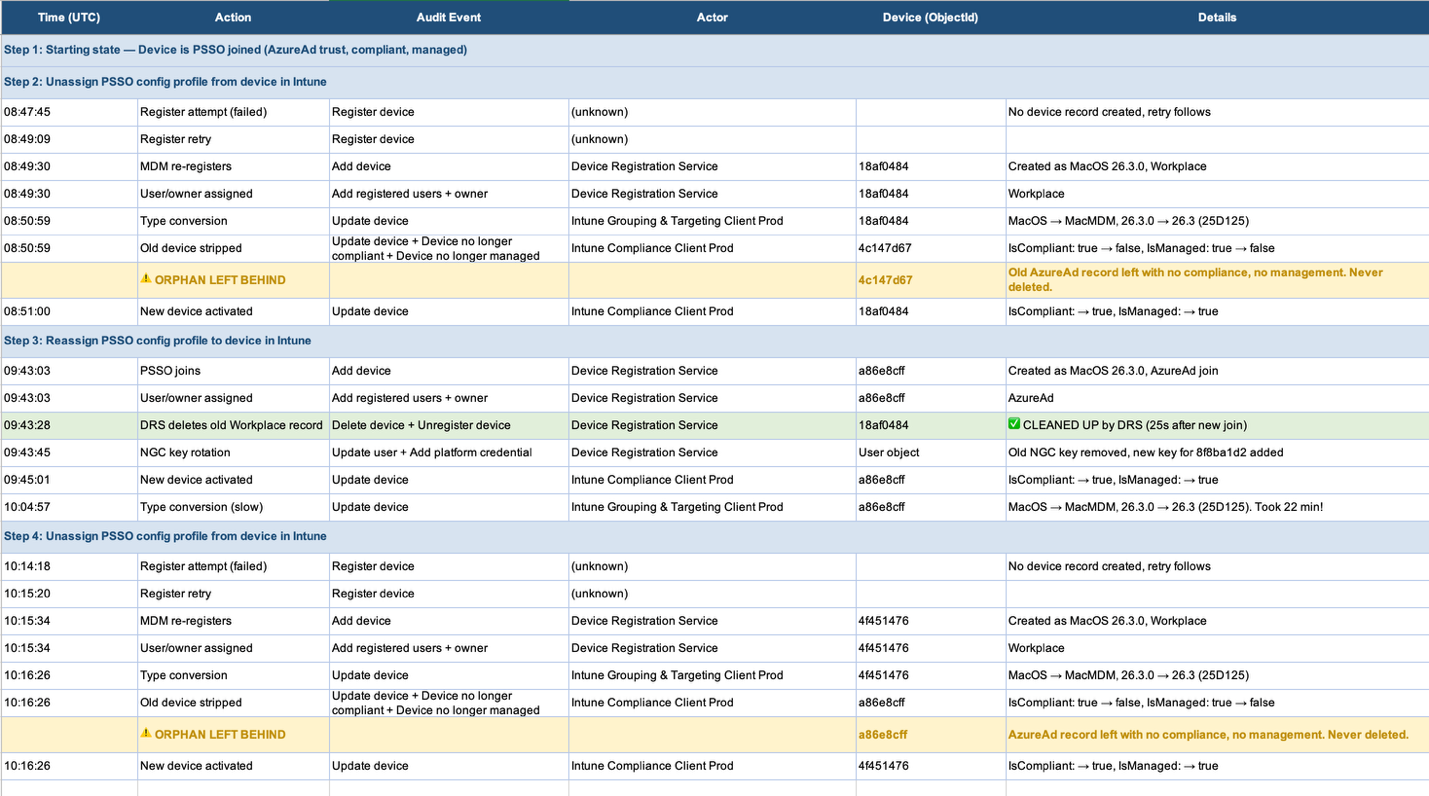
During my investigation into Platform SSO device registration behavior (blog coming-up soon…), I discovered that orphaned device records accumulate silently in Entra ID. The Intune cleanup mechanism is reactive, not proactive and it only fires during a successful new PSSO registration. Failed PSSO registration attempts, un-assigning or re-assigning PSSO configurations all create permanent orphans that nobody cleans up.
I needed a way to answer a simple question: how many orphaned Mac device records exist in my tenant right now?
The challenge? No single device property reliably identifies a duplicate. Display names can change. Device IDs are unique per registration by design. Trust types, compliance states, and OS versions all tell part of the story, but none of them tell the whole story.
My first attempt was the obvious one: Like other scripts out there, group Entra device records by displayName and flag anything with more than one entry. That lasted about ten minutes before I hit a Mac that had been renamed. Two records, two different names, same physical device. Invisible to the script. And since deviceId is unique per registration by design, there’s nothing else on the Entra side to group by. I needed something that stayed constant no matter what happened to the device record. That’s when I started looking at the Intune side.
What Makes This Script Different 🤔
There are many other scripts and community tools out there for finding stale devices in Entra ID. So why build another one? Honestly, some cowboys can’t help themselves. Give me a problem and a terminal window (or a stubborn horse), and suddenly it’s 3 AM and my wife is questioning her life choices. 🤠 Is this overkill on steroids? Probably. (with 2500 lines of code…definitely) But when the herd is scattered across your tenant, you need a proper roundup.

Serial number anchoring. Most tools group by displayName or scan Entra directly. This script uses Intune serial numbers as the ground truth for physical device identity. Names change. Serial numbers don’t.
Multi-signal orphan scoring. Instead of a simple “stale = delete” approach, the script evaluates 10 different signals and weighs them. A device with no MDM binding, a deleted user, AND no recent sign-in gets a much higher orphan score than one that’s simply a few days past your stale threshold.
BYOD safety. Tiered ownership classification ensures personal devices are never flagged for deletion, regardless of their orphan score. Because deleting someone’s BYOD registration without warning is a great way to generate help desk tickets and angry emails.
Both sides of the house. Most cleanup tools focus on either Entra or Intune. This script scans both. For macOS, the primary duplicate problem is on the Entra side: PSSO re-registration creates new Entra device records that pile up. But Intune-side duplicates can also occur, particularly when devices are reset and re-enrolled without proper cleanup. There’s currently no built-in way to prevent duplicate enrollments. The script detects duplicates on both layers with their own scoring models and generates cleanup commands for both in a single helper script.
Detached record detection. The script doesn’t just find duplicates within known device groups. It also finds Entra records that have zero connection to any Intune managed device. These “ghosts” are often the hardest to find manually.
Generated cleanup script with safety defaults. Instead of asking you to copy Object IDs and run Remove-MgDevice commands manually, you get a ready-to-review script with everything disabled by default. It covers both Entra device objects and Intune managed device records in clearly separated sections, depending on what it discovers.
Serial Numbers Are the Only Stable Anchor 🔑
Let me expand on that first point, because it’s the foundation of the entire detection approach and it took me a while to get here. I was staring at two Entra device records for the same Mac, each with its own unique deviceId (courtesy of PSSO creating a fresh registration). To make things worse, the user had renamed the Mac at some point, so the displayName didn’t match between the two records. Different IDs, different names, different registration timestamps. Nothing in common on the Entra side, and no way to prove they belonged to the same physical machine. Then I pulled up the Intune managed device record for that Mac, and there it was: the serial number. That single property was the thread connecting everything back to one physical device. The serial number is the only property that stays constant across MDM enrollments, PSSO registrations, or device renames. It’s the fingerprint of the physical Mac.
The catch? Serial numbers only exist on Intune managed device records. Entra ID device objects don’t have them. Consequently, you can’t just query Entra and group by serial. You need a two-step correlation strategy:
- Start from Intune (where serial numbers live) and group by serial to identify physical devices
- Fan out to Entra (via azureADDeviceId and displayName) to find all related device records per physical Mac
- Catch the strays by finding Entra records that couldn’t be matched to any Intune device at all

This Intune-first approach is what makes the detection reliable. Entra-only scanning will always miss the connection between records because it lacks the physical device identifier. Fellow MVP and my friend Ugur Koc wrote a great post about this exact gap. His solution? Write serial numbers to Entra extension attributes so they become searchable on the Entra side. But that’s something you should read on 😉
How the Script Detects Duplicate macOS Device Records ⚙️
Let me walk you through the detection pipeline step by step.
Step 1: Tenant Compliance Alignment
After connecting, the script queries your tenant’s compliance validity period from Intune settings. If your -StaleThresholdDays parameter doesn’t match the tenant setting, it warns you. This matters because Intune may mark a device non-compliant before or after your script considers it stale, depending on the mismatch.
The reverse is equally confusing. Set -StaleThresholdDays 60 with a 30-day tenant compliance period, and your script won’t flag a device until 60 days while Intune already marked it non-compliant at 30. You’d be looking at a device that Intune says is non-compliant but your script still considers “active.”
Small detail, but it saves you from confusing results when your script says one thing and Intune says another.
Step 2: Data Collection
The script pulls two datasets from Microsoft Graph:
# All macOS managed devices from Intune (has serial numbers)
GET /beta/deviceManagement/managedDevices?$filter=operatingSystem eq 'macOS'

# All Mac-related records from Entra (both "MacMDM" and "macOS" types)
GET /v1.0/devices?$filter=operatingSystem eq 'MacMDM'
GET /v1.0/devices?$filter=operatingSystem eq 'macOS'
Both queries use automatic pagination with built-in rate limiting and throttle detection. For large tenants, you can increase the delay between API requests with -ThrottleDelayMs. The script will also automatically retry on HTTP 429 responses with exponential backoff.
Obviously the Intune query uses the beta endpoint because managedDevices exposes properties there (like deviceEnrollmentType) that aren’t available in v1.0. The Entra queries use the v1.0 endpoint. Also, be aware that Intune’s azureADDeviceId maps to the deviceId property on the Entra /devices resource, not the id (Object ID). The script handles this mapping for you, but it’s good to know if you’re ever correlating manually.
Step 3: Build the Correlation Map
This is the heart of the script, and the part that went through the most iterations. It groups Intune records by serial number, then resolves each one to its Entra counterpart using two matching strategies:
Primary match: azureADDeviceId from the Intune record is looked up in an indexed hashtable of Entra devices. This is the most reliable link because it’s a direct identifier reference.
Secondary match: displayName from the Intune record is matched against Entra records. This catches orphaned PSSO records that share the device hostname but have a different deviceId. The script uses O(1) hashtable lookups here instead of nested loops, so it stays fast even on large tenants. In plain English: it loads all Entra devices into indexed lookup tables upfront, so each match is a single lookup regardless of tenant size. Your 50,000-device tenant gets the same speed as your lab with three Macs. You’re welcome. 🤠 I added this second matching strategy after discovering that some orphans share nothing with the Intune record except the hostname. Without the displayName fallback, those records would slip through as “detached” when they’re actually duplicates of a known device.
Detached records: After all matching is complete, any Entra records that couldn’t be linked to any Intune device are flagged as “detached orphans.” These are typically the result of failed PSSO registrations or devices that never completed MDM enrollment properly. I almost missed this category entirely. During early testing, I was focused on duplicates within known serial number groups. It wasn’t until I compared my script’s output against a raw Entra export that I noticed records that didn’t belong to any group at all. They were just floating there, completely invisible to my serial-number-based logic.
Intune-Side Duplicates and Edge Cases
The correlation map also tracks whether a serial number has multiple Intune records (HasIntuneDuplicates). This is separate from the Entra duplicate flag. A single serial can have Entra-side duplicates, Intune-side duplicates, or both.
A note on Intune-side behavior: During my own testing, I erased a Mac locally and let it re-enroll through ADE. Intune replaced the managed device record rather than creating a second one. The duplicate was on the Entra side: the old Entra device object (marked non-compliant and non-managed) was never cleaned up, while PSSO created a brand new Entra record for the re-enrolled device. So for macOS with ADE, Intune-side duplicates appear to be less common than Entra-side orphans. That said, Microsoft Q&A confirms that re-enrollment can create new Intune objects with the same serial number, and Microsoft’s own troubleshooting docs acknowledge duplicate MDM objects that aren’t automatically removed. The script checks for both scenarios because your mileage may vary.
Step 4: Analyze Each Record
For every Entra device record, the script evaluates multiple properties to build a health profile:
- MDM binding: Does it have an mdmAppId? If not, it’s likely an orphaned PSSO record
- Staleness: When did it last sign in? No sign-in within your threshold means it’s probably abandoned
- OS version format: 15.7 (24G222) (full build string) means MDM-enrolled. 15.7.0 (simplified semver) means PSSO-registered and never converted by Intune
- Trust type: AzureAd = PSSO joined (corporate). Workplace = Entra ID registered (supporting signal)
- Compliance state: A non-compliant record alongside a compliant sibling is a strong orphan indicator
- Account status: Disabled accounts are cleanup candidates
The script also looks up the primary user for each device record in the scan. If the user’s account has been deleted or disabled, that’s a very strong signal that the device record is orphaned too.

A Closer Look at OS Version Format and Trust Type
A bit more on two of these signals, because they deserve some extra context. OS version format is a subtle one. Intune’s management service reports the full macOS build string, like 15.7 (24G222), which includes Apple’s internal build identifier in parentheses. When PSSO registers a device directly with Entra, the OS self-reports a simplified format like 15.7.0. If Intune later “adopts” that PSSO record, its background service rewrites the version to the full build format. So a record still showing the simplified format was never picked up by Intune’s management service, which is a supporting orphan signal. Confused already?? 😅
Trust type is equally tricky. AzureAd means the device completed Platform SSO registration and is Entra joined. Workplace means the device is Entra ID registered only. Here’s the important nuance: without PSSO configured, all Mac device records show Workplace, including corporate ADE-enrolled machines. That means Workplace alone does not equal BYOD. The script uses this as a Tier 3 supporting signal in its ownership scoring, not a definitive classifier. A corporate Mac that simply hasn’t completed PSSO yet would score Workplace (+2 toward BYOD) but its ADE enrollment type (-10 toward corporate) easily overrides it.
Step 5: Scoring Duplicate Records for Cleanup
This is where early versions of the script got it wrong. My first scoring model was binary: has MDM binding = keep, no MDM binding = delete. Simple. And very incomplete. I ran it against my test tenant and it flagged a device that was actively in use but hadn’t completed its MDM enrollment yet. That’s when I realized no single signal is enough. You need the full picture.
The current version uses a weighted scoring system. Each record accumulates points based on how many orphan signals it matches. The model only becomes reliable when signals stack up together:
| Signal | Points | Reasoning |
|---|---|---|
| No MDM binding | +3 | Strong orphan indicator |
| Primary user account deleted | +3 | Device definitely orphaned |
| Stale device (no recent sign-in) | +2 | Not actively used |
| Device account disabled | +2 | Already flagged in Entra |
| Primary user account disabled | +2 | User no longer active |
| Both user AND device stale | +1 | Reinforced staleness |
| macOS type alongside MacMDM | +1 | Classic PSSO orphan pattern |
| Simplified OS version format | +1 | Never got converted by Intune |
| Non-compliant (sibling is compliant) | +1 | Only one record can be real |
| No matching Intune managed device | +1 | No MDM backing at all |
For each physical Mac (grouped by serial number), the record with the lowest score is considered the primary. Everything else gets flagged with a recommendation:
- Score ≥ 5: REMOVE (High confidence) — Very likely an orphan, safe to clean up after review
- Score 3-4: REVIEW (Likely orphan) — Probably an orphan, but verify before removing
- Score < 3: REVIEW (Low confidence) — Ambiguous, needs manual investigation
Scoring in Action
To make this concrete, imagine serial FVFG70X1Q6P has two Entra records:
- Record A (MacMDM): MDM bound, compliant, last sign-in yesterday → Score: 0 → KEEP (Primary)
- Record B (macOS): No MDM binding (+3), stale for 45 days (+2), simplified OS version (+1), non-compliant alongside compliant sibling (+1) → Score: 7 → REMOVE (High confidence)
That’s the scoring model in action. Record B hits four signals that each tell part of the orphan story, and together they make a strong case for cleanup.
Intune-Side Orphan Scoring
The same scoring concept applies to Intune-side duplicates, but with signals that make sense for managed device records. Different data source, same principle: stack the evidence before making a call.
| Signal | Points | Reasoning |
|---|---|---|
| Stale sync | +3 | lastSyncDateTime past your threshold |
| Primary user account deleted | +3 | Device definitely orphaned |
| No Entra match | +2 | azureADDeviceId not found in Entra |
| Primary user account disabled | +2 | User no longer active |
| Non-compliant | +1 | complianceState is noncompliant |
| Older enrollment | +1 | Not the newest enrolledDateTime for this serial |
The scoring logic works the same way as the Entra side: lowest score per serial is the primary, ≥ 5 means REMOVE, ≥ 3 means REVIEW, and BYOD devices are never flagged. The difference is in the signals, not the math.
Step 6: BYOD Protection
Here’s something I’m particularly careful about. The script will never flag a BYOD device for deletion. Not ever.
Early versions used a simple TrustType check: Workplace = BYOD, AzureAd = corporate. That worked great but without PSSO configured, every corporate ADE-enrolled Mac also shows Workplace. My “BYOD detection” was misclassifying half the fleet. Therefore, the script evaluates multiple Intune enrollment signals and only classifies a device as BYOD when the evidence is strong enough:
- Tier 1 (definitive): deviceEnrollmentType of appleBulkWithUser or appleBulkWithoutUser = definitely corporate (ADE). userEnrollment = definitely BYOD
- Tier 2 (strong): managedDeviceOwnerType set by admin, enrollment profile presence
- Tier 3 (supporting): Supervised status, Entra TrustType
Devices classified as BYOD appear in the reports for visibility, but they’re explicitly excluded from all cleanup recommendations and the generated cleanup script. This applies to both Entra device objects and Intune managed device records. Because accidentally deleting a user’s personal device registration is the kind of career-limiting move we all want to avoid. 😬
The Hidden Security Audit
This ownership scoring doesn’t just protect BYOD devices from cleanup. It also surfaces a security insight. Any corporate Mac with an ownership score that includes TrustType=Workplace is a Mac that hasn’t completed PSSO registration. That means:
- It’s not getting a full PSSO Primary Refresh Token
- Device-based Conditional Access policies may not be fully enforced
- It’s missing the hardware-bound secure enclave key protection that PSSO provides
- The user isn’t getting the seamless SSO experience you think they’re getting
To illustrate point 2, here’s what actually happens in Conditional Access when a corporate Mac signs in without PSSO completed (trustType: Workplace):
| Policy | Result | Why |
|---|---|---|
| Require compliant device (no filter) | ✅ Success | Device is Intune-compliant, no trust type filter, so it passes |
| Require compliant device + filter trustType -eq Workplace | ✅ Success | Device matches the Workplace filter, and it’s compliant |
| Require compliant device + filter trustType -eq AzureAD | ⚠️ Not Applied | Device doesn’t match the AzureAD filter, so the policy is completely skipped |
Now compare that to the same user on a Mac that has completed PSSO registration (trustType: AzureAd):
| Policy | Result | Why |
|---|---|---|
| Require compliant device (no filter) | ✅ Success | Device is Intune-compliant, no trust type filter, so it passes |
| Require compliant device + filter trustType -eq Workplace | ⚠️ Not Applied | Device is AzureAd joined now, doesn’t match the Workplace filter |
| Require compliant device + filter trustType -eq AzureAD | ✅ Success | Device matches the AzureAD filter, and it’s compliant |
I know this makes sense, but if you’re relying on a CA policy filtered to trustType -eq “AzureAD” to enforce compliance or block access, a corporate Mac without PSSO sails right past it. The policy doesn’t fail. It doesn’t get evaluated. Your CA policy is basically standing at the gate checking IDs, and this Mac just walked around the building.

So when the scanner outputs a device with OwnershipClassification: Corporate but TrustType: Workplace in the signals, that’s not just a data quality issue. That’s a security posture gap you should investigate. Is PSSO configured? Did registration fail? Is Company Portal installed via PKG instead of through Intune?
Pro tip: Run the scanner and filter the CSV output for devices where OwnershipClassification is “Corporate” and OwnershipSignals contains “Workplace.” Those are your corporate Macs that need PSSO attention.
Duplicate Record Reports and Output 📊
After scanning, you get a timestamped folder on your Desktop with up to six files:
all_mac_device_records.csv — Every Entra device record analyzed, with all properties including ownership classification, user status, and orphan scoring details. This is your full dataset for further analysis.
duplicate_and_orphan_records.csv — Only Entra records that are part of a duplicate group or detached from Intune. The focused view for investigation.
recommended_cleanup.csv — Actionable Entra cleanup candidates with their recommendation level and reasoning. This is what you review before deleting anything.
intune_duplicate_records.csv — All Intune managed device records for serial numbers that have more than one entry. Only generated when Intune-side duplicates are found.
recommended_intune_cleanup.csv — Actionable Intune cleanup candidates with their Intune-specific scoring and reasoning. Only generated when Intune-side duplicates are found.
cleanup_helper.ps1 — An auto-generated PowerShell script with every flagged device pre-loaded. It has two clearly separated sections: Entra device object cleanup (Remove-MgDevice) and Intune managed device cleanup (Remove-MgDeviceManagementManagedDevice). Each deletion is disabled by default (-DeleteDevice $false). You review each entry, enable the ones you want to remove, and run the script. It supports -WhatIf for a dry run preview and -DeleteAll for bulk operations (with confirmation).

Additionally, a scan_transcript.log captures the entire console output for your records.
Running the Script 🚀
Prerequisites
You need PowerShell 7+ and the Microsoft.Graph module. The script checks for this automatically and gives you install instructions if anything is missing.
Required Graph API permissions:
- Device.Read.All — Read Entra device records
- DeviceManagementManagedDevices.Read.All — Read Intune managed devices
- User.Read.All — Look up primary user status (optional, use -SkipUserLookup to skip)
For cleanup, the generated cleanup_helper.ps1 needs additional write permissions:
- Device.ReadWrite.All — Delete Entra device objects
- DeviceManagementManagedDevices.ReadWrite.All — Delete Intune managed device records
Basic Usage
# Standard scan with 30-day stale threshold
.\Find-DuplicateMacDevices.ps1

# Custom stale threshold (match your tenant's compliance period)
.\Find-DuplicateMacDevices.ps1 -StaleThresholdDays 60

# Large tenant? Slow down API calls to avoid throttling
.\Find-DuplicateMacDevices.ps1 -ThrottleDelayMs 200

# Already connected to Graph? Skip the connection step
.\Find-DuplicateMacDevices.ps1 -SkipConnect

# Don't have User.Read.All permissions? No problem
.\Find-DuplicateMacDevices.ps1 -SkipUserLookup

# Custom output location
.\Find-DuplicateMacDevices.ps1 -OutputPath "C:\Temp\DuplicateReport"
The script works cross-platform. Run it from Windows or macOS (duh) . It auto-detects your platform and sets the output path accordingly.
Cleaning Up Duplicate macOS Device Records 🧹
Once you have your results, here’s how I recommend approaching cleanup.
I’ll be honest: the first time I ran this against a real tenant and saw 40+ records flagged as REMOVE (High confidence), I didn’t touch a single one for two days. I cross-referenced every entry against Entra audit logs, checked sign-in timestamps, and verified user accounts before deleting anything. That caution is exactly why the script generates a helper script with everything disabled by default. A little paranoia is in place here if you ask me.
1. Review recommended_cleanup.csv and recommended_intune_cleanup.csv first. Sort by Recommendation and focus on the “REMOVE (High confidence)” entries. Cross-reference with Entra audit logs if you want extra confidence. The Entra and Intune files are separate because they have different columns and target different APIs. The Intune files will only be created when there are duplicates in Intune.

2. Preview with -WhatIf. The generated cleanup helper script supports PowerShell’s -WhatIf parameter. Always preview before deleting.
# Preview what would happen (no deletions)
.\cleanup_helper.ps1 -WhatIf
3. Selective deletion (recommended). Open cleanup_helper.ps1 in your editor. You’ll see two clearly separated sections: Entra device objects and Intune managed devices. Each device has a block with its details and a -DeleteDevice $false flag. Change it to $true for each device you’ve verified.
# After reviewing and enabling specific devices
.\cleanup_helper.ps1
4. Bulk deletion (only after thorough review!). If you’ve reviewed the entire recommended_cleanup.csv and every entry is safe to remove, you can use the -DeleteAll switch. It requires you to type DELETE ALL as confirmation. Because the only thing worse than orphaned records is accidentally deleting the wrong ones.
# Nuclear option (requires typing DELETE ALL to confirm)
.\cleanup_helper.ps1 -DeleteAll
5. Verify. After cleanup, run the scanner again with -SkipConnect to confirm everything looks clean.
ALWAYS TEST in a controlled environment before deploying in your production environment! Don’t just trust any script you find out there (yes, including mine). Take the time to really understand what it does before running it against your tenant.
Scanning for Duplicate Records in Large Tenants 🏢
The script is built to scan for duplicate macOS device records in large environments without choking on API limits:
- Paginated API requests with automatic @odata.nextLink handling. No matter how many devices you have, it will fetch them all
- Rate limit detection with automatic retry on HTTP 429 responses. The script backs off and waits, then tries again
- HashSet-based lookups for O(1) performance on device correlation and deduplication. No nested loops scanning arrays
- User lookup caching so each unique UPN is only queried once, regardless of how many devices reference it
- Batch user lookups via the Graph $batch API. Instead of hundreds of individual HTTP calls, it groups 20 UPNs per batch request. In my testing, this reduced user resolution from about 5 minutes to around 15 seconds
- Configurable throttle delay (-ThrottleDelayMs) for environments that need gentler API usage
- Graceful Ctrl+C handling that exports partial results if you interrupt a long-running scan
Part of a Bigger Toolkit 🧰
Find-DuplicateMacDevices.ps1 doesn’t exist in a vacuum. It’s the cleanup tool in a larger investigation toolkit I’ve been building to understand and troubleshoot macOS device registration behavior in Microsoft Intune and Entra ID.
The full toolkit (work in progress…) includes:
Monitor-GraphDeviceType.ps1 — A real-time PowerShell monitoring script that polls Microsoft Graph for changes to Entra device records, Intune managed devices, and audit logs. It detects device type conversions (MacMDM to macOS and back), OS version format changes, trust type flips, and new device registrations as they happen. This is the script I used to discover the undocumented cleanup mechanism in the first place. It exports timestamped CSV snapshots so you can reconstruct exactly what happened and when.
capture-local-logs.sh — A bash script that runs on the Mac under test with sudo. It captures system state in five phases: baseline, nine parallel log streams (AppSSO, mdmclient, Company Portal, security framework, network traffic, and more), interactive scenario execution, post-test state, and a summary report. Supports four scenarios: fresh PSSO deployment, PSSO deregister/re-register, pre-OS-upgrade baseline, and post-OS-upgrade recovery.
audit_timeline.html — An interactive visualization built in vanilla JavaScript that turns your Entra audit log exports into color-coded timelines. Filter by event type, zoom into specific windows, and see exactly when device records were created, updated, or deleted.
Together, these tools give you both sides of the story: the cloud side (what Microsoft’s APIs report) and the local side (what the Mac is actually doing). Running them in parallel during a test is how I proved that PSSO always creates new device records, that Intune’s cleanup takes roughly 35 seconds, and that failed registrations leave permanent orphans.
Complete toolkit soon!
I’m currently working on a detailed blog post covering the full investigation and the complete toolkit. That post will walk through the undocumented Intune cleanup mechanism, the hidden service principal that does the heavy lifting, and what not. Stay tuned for that one. It’s going to be a deep dive. 🤿 …Again…
Resources
- GitHub: Find-DuplicateMacDevices.ps1 — Always grab the latest version from the repository
- Microsoft Graph API – deviceType enum: learn.microsoft.com
- Manage device identities in Entra ID: learn.microsoft.com
- Troubleshoot macOS Platform SSO: learn.microsoft.com
- Remove duplicate MDM objects in Entra ID: learn.microsoft.com
- Duplicate devices after re-enrollment (Microsoft Q&A): learn.microsoft.com
- No method to prevent duplicate enrollments (Microsoft Q&A): learn.microsoft.com
- Ugur Koc — Serial numbers in Entra extension attributes: ugurkoc.de
- Understanding Primary Refresh Token (PRT): learn.microsoft.com — The macOS PRT issuance tab explains the PSSO requirement
- Graph API device resource type (trustType property): learn.microsoft.com — Official definition of Workplace, AzureAd, ServerAd values
- Dynamic membership rules for groups: learn.microsoft.com — Using deviceTrustType in dynamic group rules
- Conditional Access device filters: learn.microsoft.com — Using trustType in CA policy filters
- Configure Platform SSO for macOS: learn.microsoft.com — Setting up PSSO to get AzureAd trust type
- Related post: The Hidden Life of macOS Device Records in Entra ID — The full investigation into why duplicates are created in the first place (coming soon)
If you’ve seen a duplicate pattern that this script doesn’t detect, I want to know about it. Drop a comment below or reach out. Happy hunting! 🤠

[…] was Luke on LinkedIn, commenting on my Entra ID duplicate scanner. And he was absolutely right. MDE’s device inventory can feel like a ghost town of orphaned […]
Any thoughts how to prevent duplicate entries from appearing? It seems to break our CA policies when user’s try to access resources