Last Updated on January 16, 2026 by Oktay Sari
“Because sometimes your security requirements make you question your life choices” 🤠
A Word of Warning Before We Start
Conditional access policies and Device-Based Access Control are fun and all, however, let me be crystal clear before we dive into this: I do not advise excluding users from MFA. In fact, I think it’s… well, let’s just say it’s not the smartest move in the security playbook. After all, MFA is one of the most effective security controls we have. According to Microsoft, more than 99.9% of compromised accounts don’t have MFA. Essentially, removing it is like taking the locks off your front door because you’re tired of fumbling for your keys.
That said, sometimes customers come to you with requirements that make you tilt your head like a confused puppy. Moreover, as consultants, our job is to help them achieve their goals as securely as possible, even when those goals make us wanna cry out loud.
For the record: I tried talking them out of this. Nevertheless, they insisted. This is me making sure they don’t hurt themselves in the process. Once the decision was made, my job shifted from “convince them otherwise” to “if we’re doing this, let’s do it as securely as humanly possible.”, Although I’m still not convinced..
This blog post documents a Proof of Concept (POC) implementation. Therefore, the Device-Based Access Control techniques shown here should be thoroughly tested, validated, and approved by your security team before even thinking about production deployment. Ultimately, consider this a learning exercise, not a production blueprint.
⛔ When NOT to Use This Pattern

This MFA exclusion approach is not appropriate for:

• Regulatory/compliance environments (HIPAA, PCI-DSS, SOX, GDPR often mandate MFA)
• Privileged roles (Global Admins, Security Admins, Finance, IT Admins)
• External/guest users (B2B scenarios should always require MFA)
• Environments without robust monitoring (if you can't detect anomalies, don't weaken controls)
• Users with access to sensitive data (HR, Legal, M&A, customer PII)

If any of these apply to your scenario, stop here and implement proper MFA instead.
You should be doing that regardless, but I get it...And since you're still here,
I'm guessing you've got one of those "it's complicated" situations.
With that disclaimer out of the way… Against my better judgment, let’s continue…
Table of Contents
- The Customer Requirement
- The Challenge: Why This Isn’t Straightforward
- Design Summary
- The Solution: 5 Conditional Access Policies
- Testing and Validation
- Deep Dive: Browser vs Native App Sign-ins ⭐
Note: To keep this blog readable I decided to write a white-paper on this topic with more information, a full FAQ, resources, and what not! download the white-paper here
The Customer Requirement
A customer approached me with a requirement that went something like this:
"We have a specific group of users who need to access Microsoft 365 services without MFA,
but ONLY under very specific conditions..."
Translation: “We want to poke holes in our security, but make those holes as small as possible.”
After several cups of coffee and a few deep breaths, we defined the actual requirements:
The Requirements (In Plain English)
- First, only allow access without MFA when:
- User is on a trusted network location (specific IP: 123.123.123.123)
- Additionally, user is on an approved device (Entra ID Joined with specific enrollment profile OR Windows 365 Cloud PC)
- Second, always block BYOD devices regardless of location
- Third, allow M365 access from inside Cloud PC sessions – Now, here’s the tricky part: once a user has legitimately connected to their Cloud PC from the trusted location, they need to access M365 services (SharePoint, Teams, Outlook, etc.) from within that Cloud PC. However, this traffic originates from Microsoft Azure infrastructure IPs, not your trusted corporate IP. As a result, we need to explicitly allow this traffic to avoid blocking users from actually working inside their Cloud PC.
Important clarification: Users cannot connect to Windows 365 from “anywhere.” They MUST be on the trusted location with an approved device to even sign-in using the Windows App and connect to their Cloud PC. In other words, the CA002 policy only ensures they can use M365 apps once they’re already inside the Cloud PC session.
Sounds simple enough, right?
The Challenge: Why This Isn’t Straightforward
If you’ve worked with Conditional Access policies and Device-Based Access Control before, you might think: “Just create a policy that requires trusted location AND compliant device. Done!”
Well, there are some fun complications:
Challenge 1: Why Not Just Use “Require Compliant Device”?
The obvious solution would be to use the built-in Grant control “Require device to be marked as compliant” in combination with a trusted location requirement. But here’s the catch:
These are critical systems. The customer explicitly stated that when a compliance check fails (maybe a policy hasn’t synced yet, or there’s a temporary issue), it should be:
- Monitored and reported
- Investigated and handled by IT
- NOT an immediate block
If we used the “Require compliant device” Grant control, any compliance failure would potentially lock users out of their critical applications. I know it depends on your compliance policy configuration but in this case, this is not acceptable.
Instead, we use enrollment profile validation through device filters. This approach:
- Validates the device was enrolled through an approved, controlled process (enrollment profile)
- Doesn’t depend on real-time compliance state
- Provides a stable, predictable access control mechanism
Compliance is still monitored and enforced through separate Intune compliance policies and alerts, just not at the Conditional Access gate.
Challenge 2: Why Session Controls Instead of Grant Controls?
You might wonder: if we’re not requiring compliance, why not just use other Grant controls in Conditional Access policies?
Here’s the problem: Grant controls determine whether access is granted or blocked based on meeting a requirement. The available Grant options are:
- Block access
- Require multifactor authentication
- Require authentication strength
- Require device to be marked as compliant
- Require Microsoft Entra hybrid joined device
- etc.
None of these fit our scenario! We can’t use:
- Require MFA – The whole point is to NOT require MFA
- Authentication strength; Unfortunately, also a no-go
- Require compliant device – critical systems can’t tolerate immediate blocks (as explained above)
- Require hybrid joined – Not all devices are hybrid joined
Note on Require Microsoft Entra hybrid joined device from the docs:
- Only supports domain-joined Windows down-level (before Windows 10) and Windows current (Windows 10+) devices.
- Doesn’t consider Microsoft Edge in InPrivate mode as a Microsoft Entra hybrid joined device.
More on the “Microsoft Edge” thingy later in this blog…
So what do we use when we want to allow access without MFA for specific scenarios? We use Session controls. In this case sign-in frequency. This creates an “Allow” policy that:
- Grants access to users who match the conditions
- Applies a session control (1-day sign-in frequency) instead of requiring MFA
- Works with our device filter to target specific approved devices
Important: Session controls don't block unauthorized access by themselves.
They control re-authentication frequency for users who ARE granted access.
That's why we need explicit Block policies (CA003, CA004, CA005) to catch everything else.
For more details on Grant vs Session controls, see Microsoft’s documentation on Grant controls and Session controls.
Challenge 3: Cloud PC Traffic and Microsoft Hosted Network
This is where things get interesting. In this POC, the customer uses Microsoft Hosted Network for their Windows 365 Cloud PCs. This means:
- Microsoft manages the network infrastructure
- Cloud PC traffic egresses through Microsoft Azure’s IP ranges
- You have NO control over the source IP addresses
- Traffic will NEVER come from your trusted corporate IP
Why does this matter? When a user inside their Cloud PC opens SharePoint or Teams, that request comes from an Azure IP address (e.g., 4.232.191.205), not your trusted location (123.123.123.123). If you simply block all non-trusted locations, you block your users from doing any actual work inside their Cloud PC!
The Alternative: Azure Network Connection (ANC)
Now, here’s something to think about for your own implementation. If you use Azure Network Connection instead of Microsoft Hosted Network, you could potentially:
- Route Cloud PC traffic through your own Azure VNet
- Egress traffic through your corporate network (via ExpressRoute or VPN)
- Have Cloud PC traffic appear to come from your trusted IP range
- Use standard location-based policies without the Cloud PC exclusion workaround
With ANC, you might be able to simplify this entire solution because all traffic (including from inside Cloud PCs) would come from your controlled network. This is definitely worth exploring if you have the infrastructure and licensing to support it!
However, ANC comes with additional complexity:
- Requires Azure networking expertise
- Additional costs for VNet, gateways, and bandwidth
- More moving parts to manage and troubleshoot
- Potential latency considerations
For this POC, the customer used Microsoft Hosted Network, so we had to work around the Azure IP challenge. For more information, see Windows 365 Network Requirements and Azure Network Connection.
Challenge 4: Device Filters and Boolean Logic
Device filter syntax in Conditional Access policies can be… tricky. Unlike standard Boolean algebra where AND has higher precedence than OR, Intune and Entra ID filters evaluate all operators with equal precedence, left to right.
Microsoft explains this in their “Back to school – Using Boolean algebra correctly in complex filters” article.
The gotcha: When your filter ends with an OR condition, the left-to-right evaluation can produce unexpected matches. Here’s Microsoft’s example:
Intended: Match (Dell Precision OR Latitude) AND (Prod Profile OR Lab Profile)
device.model -startsWith "Precision 3541" -or device.model -startsWith "Latitude" -and device.enrollmentProfileName -eq "Autopilot Prod Profile" -or device.enrollmentProfileName -eq "Autopilot Lab Profile"
What left-to-right actually gives you:
((("Precision 3541" OR "Latitude") AND "Prod Profile") OR "Lab Profile")
Problem: A Surface Laptop with “Lab Profile” would match!
The trailing OR means ANY device with Lab Profile gets included.
An interesting workaround: If you repeat a critical condition at the end of your filter, it acts as a “final gate”:
device.model -contains "Cloud PC" -and device.trustType -eq "AzureAD" -or device.enrollmentProfileName -eq "profile1" -and device.trustType -eq "AzureAD"
This evaluates as ((model AND trustType) OR enrollmentProfile) AND trustType. Because trustType appears at both the beginning AND end, any match must be Entra Joined. This works, but it’s fragile: if someone later modifies the filter and removes that trailing condition, it breaks silently.
The recommended solution: Use explicit parentheses. Yes, the filter builder can no longer display the query visually, but the clarity is worth it:
((device.enrollmentProfileName -eq "profile1") -and (device.trustType -eq "AzureAD")) -or ((device.model -contains "Cloud PC") -and (device.trustType -eq "AzureAD"))
This ensures each condition group is properly evaluated before being OR’d together, and anyone reading the filter later will understand exactly what it does.

Screenshot: Filter builder not showing the complex filter
Challenge 5: Implicit Allow is Your Enemy
Conditional Access policies work on a “if no policy blocks, access is granted” principle. This means any scenario you don’t explicitly handle could result in an implicit allow. Miss one edge case? Congratulations, you have a security gap.
That’s why we ended up with 5 policies instead of 2 or 3. Every possible scenario needs to be explicitly handled.
Design Summary
Before diving into the implementation, here’s the high-level design:
Inputs:
- Trusted IP: 123.123.123.123 (corporate network)
- Approved devices: Entra ID Joined + specific enrollment profile OR Windows 365 Cloud PCs
- W365 constraint: Microsoft Hosted Network (Cloud PC traffic egresses from Azure IPs, not trusted IP)
Output: 5-policy pattern (2 Allow + Session, 3 Block)
Decision flow:
- User on trusted IP + approved device → CA001 allows (1-day session)
- User inside Cloud PC accessing M365 → CA002 allows (Azure IPs, 1-day session)
- User on any device that’s not Entra Joined → CA003 blocks (BYOD)
- User on non-trusted IP (except Cloud PC) → CA004 blocks
- User on trusted IP with wrong enrollment profile → CA005 blocks
The Solution: 5 Conditional Access Policies
After much whiteboarding, testing, and the occasional head-desk moment, we landed on a 5-policy solution. Why 5? Because troubleshooting matters, and when a user calls saying “I can’t access SharePoint,” you want the sign-in logs to tell you *exactly* which policy blocked them and why.
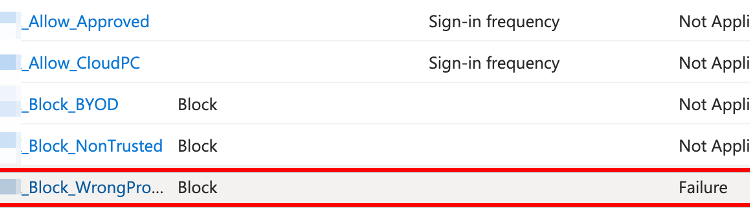
Policy Overview
| Policy | Type | Purpose |
| CA001_Allow_Approved | Allow + Session | Grant access to approved devices on trusted location |
| CA002_Allow_CloudPC | Allow + Session | Allow M365 access inside Cloud PC sessions (Azure IPs) |
| CA003_Block_BYOD | Block | Block all BYOD/unregistered devices everywhere |
| CA004_Block_NonTrusted | Block | Block access from non-trusted locations |
| CA005_Block_WrongProfile | Block | Block devices with wrong enrollment profile on trusted location |
Let’s break down each policy:
Policy 1: CA001_Allow_Approved
Purpose: Grant access to users on approved devices at trusted locations
Name: CA001_Allow_Approved
Users: Security Group ABC
Cloud Apps: All cloud apps
Locations: Include: Trusted location (123.123.123.123)
Device Filter: Include filtered devices
Filter Syntax: ((device.enrollmentProfileName -eq "YourProfile") -and (device.trustType -eq "AzureAD")) -or ((device.model -contains "Cloud PC") -and (device.trustType -eq "AzureAD"))
Grant: Session sign-in frequency: 1 days
What it does: If you’re on the trusted network AND using either an approved workstation (enrolled via specific profile) OR a Cloud PC, you get access with a 1-day session.
Policy 2: CA002_Allow_CloudPC
Purpose: Allow M365 access from inside Cloud PC sessions
Name: CA002_Allow_CloudPC
Users: Security Group ABC
Cloud Apps: All cloud apps
Locations: All locations
Device Filter: Include filtered devices
Filter Syntax: ((device.model -contains "Cloud PC") -and (device.trustType -eq "AzureAD"))
Grant: Session sign-in frequency: 1 days
What it does: When traffic comes from a Cloud PC device (identified by device properties, not location), allow access with a 1-day session.
Why you need this: Remember, with Microsoft Hosted Network, Cloud PC traffic comes from Azure IPs. Without this policy, users would:
- Successfully connect to their Cloud PC from the trusted location
- Try to open SharePoint inside the Cloud PC BLOCKED (traffic comes from Azure IP)
This policy recognizes the Cloud PC device itself (which is Entra Joined and has “Cloud PC” in its model name) and allows the traffic regardless of source IP.
Important: This does NOT allow users to connect to their Cloud PC from anywhere. The Windows App connection itself is still subject to CA001/CA004. This policy only allows M365 traffic that originates from inside an already-established Cloud PC session.
Policy 3: CA003_Block_BYOD
Purpose: Block all unmanaged devices, everywhere, always
Name: CA003_Block_BYOD
Users: Security Group ABC
Cloud Apps: All cloud apps
Locations: All locations
Device Filter: Include filtered devices
Filter Syntax: (device.trustType -ne "AzureAD")
Grant: Block
What it does: Any device that is NOT Entra ID Joined gets blocked. This catches:
- Personal devices (BYOD)
- Entra ID Registered devices (not the same as Joined!)
- Any unmanaged device
The magic of `-ne` with null values: BYOD devices have null for trustType. The expression device.trustType -ne “AzureAD” evaluates to TRUE for null values, so BYOD devices get caught by this filter. See Microsoft’s documentation on device filters for more details on how null values are evaluated.
Policy 4: CA004_Block_NonTrusted
Purpose: Block access from non-trusted locations (except Cloud PC sessions)
Name: CA004_Block_NonTrusted
Users: Security Group ABC
Cloud Apps: All cloud apps
Locations: Include: Any location
Exclude: Trusted location (123.123.123.123)
Device Filter: Exclude filtered devices
Filter Syntax: ((device.model -contains "Cloud PC")
-and (device.trustType -eq "AzureAD"))
Grant: Block
What it does: Block access from any location that isn’t your trusted IP, EXCEPT for Cloud PC devices.
Why exclude Cloud PC: If we didn’t exclude Cloud PCs, the M365 traffic from inside Cloud PC sessions would be blocked (since it comes from Azure IPs, not the trusted location). The device filter exclusion recognizes legitimate Cloud PC traffic and lets it through while blocking everything else from non-trusted locations.
Policy 5: CA005_Block_WrongProfile
Purpose: Block devices with incorrect enrollment profile on trusted location
Name: CA005_Block_WrongProfile
Users: Security Group ABC
Cloud Apps: All cloud apps
Locations: Include: Trusted location (123.123.123.123)
Device Filter: Exclude filtered devices
Filter Syntax: ((device.enrollmentProfileName -eq "YourProfile") -and (device.trustType -eq "AzureAD")) -or ((device.model -contains "Cloud PC") -and (device.trustType -eq "AzureAD"))
Grant: Block
What it does: On the trusted location, block any Entra Joined device that doesn’t have the correct enrollment profile.
Why it’s needed: Without this, someone could bring an Entra Joined device with a different enrollment profile (perhaps from another department or a personal device they enrolled) and get access. The exclude filter means only correctly enrolled devices and Cloud PCs are excluded from the block.
Pro tip

Before relying on model filters in production, validate the actual model strings that exist in
your tenant. Query your Entra ID device inventory to see what Cloud PCs and other devices report
as their model values. This helps you write accurate filters and avoid surprises from unexpected
model string formats.

Warning: When users switch to a new Cloud PC model, policies that rely on the model filter might
not catch them if these policies are not correctly formatted!
Testing: The Test Matrix
Before deploying anything to production (you ARE testing in a POC environment first, right?), we created a comprehensive test matrix. Here’s what we tested:
Test Scenarios
| # | Scenario | Device Type | Enrollment Profile | Location | Expected | Actual | Policy |
| 1 | BYOD + Trusted | Personal | None | Trusted | Block | Block | CA003 |
| 2 | BYOD + Non-Trusted | Personal | None | Non-Trusted | Block | Block | CA003+CA004 |
| 3 | Approved GWP + Trusted | Workstation | YourProfile | Trusted | Allow | Allow | CA001 |
| 4 | Cloud PC + Azure IP | Cloud PC | W365 Profile | Azure IP | Allow | Allow | CA002 |
| 5 | Approved Device + Non-Trusted | Workstation | YourProfile | Non-Trusted | Block | Block | CA004 |
| 6 | Wrong Profile + Trusted | macOS | DifferentProfile | Trusted | Block | Block | CA005 |
| 7 | Wrong Profile + Non-Trusted | macOS | DifferentProfile | Non-Trusted | Block | Block | CA004 |
| 8 | Windows App from Non-Trusted | Any | Any | Non-Trusted | Block | Block | CA004 |
| 9 | M365 inside Cloud PC | Cloud PC | W365 Profile | Azure IP | Allow | Allow | CA002 |
All tests passed! ✅
Analyzing the Sign-in Logs: A Real-World Example
Let me walk you through how we validated the policies were working by analyzing actual sign-in logs.
Key Fields to Analyze
| Field | What to Look For |
| Status | Success / Failure / Interrupted |
| IP address | Is it your trusted IP? Or Azure IP (Cloud PC)? |
| Device ID | null = BYOD, GUID = registered device |
| Join Type | “Azure AD joined” / “Azure AD registered” / empty |
| Compliant | True / False / empty |
| Conditional Access | Which policy was applied |
| Failure reason | Why was access blocked |
Note: To keep this blog readable I left out some of the findings. If you want the full story, download the white-paper here
Validating CA003: Finding the BYOD Gap
Without an explicit BYOD block policy, personal devices from the trusted location got through because no policy explicitly blocked them. The implicit allow kicked in! Here’s what happened with CA003 enabled:
With CA003 enabled:
Request ID: 54ae5a8b-36bc-40f7-ba94-XXXXXXXXXXXX
Status: Failure
IP address: 123.123.123.123 (Trusted)
Device ID: null
Join Type: (empty)
Operating System: macOS
Application: Microsoft Teams Web Client
Failure reason: Access has been blocked by Conditional Access policies.
Blocking Policy: CA003_Block_BYOD
CA003 caught it! BYOD devices are blocked even from the trusted location.
Validating CA005: Wrong Enrollment Profile
With CA005 enabled:
Request ID: b92bca5c-dd72-4e8a-8612-XXXXXXXXXXXX
Status: Failure
IP address: 123.123.123.123 (Trusted)
Device ID: 573a91ff-d641-4d87-XXXX-XXXXXXXXXXXX
Join Type: Azure AD joined
Failure reason: Access has been blocked by Conditional Access policies.
Blocking Policy: CA005_Block_WrongProfile
CA005 caught it! The device had a different enrollment profile and was correctly blocked.Without CA005, it got through!
Deep Dive: Browser vs Native App Sign-ins (Same Device, Different Results!)
This is where things get really interesting. During our testing, we observed something that’s critical to understand: the same device can trigger different policies depending on how the user signs in.
Let me show you two sign-in attempts from the same user, on the same device, just 21 seconds apart:
Sign-in 1: Browser in Guest Mode (Microsoft Teams Web Client)
Request ID: 54ae5a8b-36bc-40f7-ba94-XXXXXXXXXXXX
Time: 1/9/2026, 1:13:54 PM
Application: Microsoft Teams Web Client (Browser - Edge in Guest Mode)
Device ID: (empty/null)
Join Type: (empty)
Compliant: (empty)
IP: 123.123.123.123 (Trusted)
Status: Failure

Screenshot: Activity Details: Sign-ins CA0003 & CA0005
Important context: This macOS device has:
- ✅ Company Portal installed
- ✅ Device enrolled in Intune
- ✅ Platform SSO deployed and configured (which includes the SSO app extension)
- ✅ Entra ID joined
- ✅ Compliant status
Everything is properly configured for browser SSO to work!
But the user opened the browser in Guest mode (“Browse as Guest”).
Policies triggered:
| Policy | Result | Device Filter |
| CA003_Block_BYOD | ❌ Failure | “Device filter rule included“ |
| CA005_Block_WrongProfile | ❌ Failure | “Device filter rule excluded“ |
Wait, both CA003 AND CA005 blocked this? But if CA003 (BYOD block) fired, shouldn’t this be a BYOD device? And the device IS enrolled with Platform SSO! Let’s look at the next sign-in…
Sign-in 2: Native App (Windows App for macOS)
Request ID: b92bca5c-dd72-4e8a-8612-XXXXXXXXXXXX
Time: 1/9/2026, 1:14:15 PM
Application: Windows App - macOS (Native app)
Device ID: 573a91ff-d641-4d87-XXXX-XXXXXXXXXXXX
Join Type: Azure AD joined
Compliant: true
Managed: true
IP: 123.123.123.123 (Trusted)
Status: Failure

Screenshot: Activity Details: Sign-ins CA0005
Policies triggered:
| Policy | Result | Why |
| CA003_Block_BYOD | ✅ Not Applied | trustType = AzureAD, so filter doesn’t match |
| CA005_Block_WrongProfile | ❌ Failure | Device is Entra Joined but has wrong enrollment profile |
What’s Happening Here?
We have the same device, the same user, same location. Completely different policy evaluation!
The key difference is how the application authenticates with Entra ID, and in the browser case, Guest mode completely bypasses all device identity mechanisms.
Browser sign-in (Edge in Guest Mode):
- First, guest mode has no browser profile → No access to stored credentials or certificates
- No SSO extension context → Even though Platform SSO is deployed (which includes the SSO app extension), Guest mode can’t access it
- No PRT access → The Primary Refresh Token is tied to the user profile, not available in Guest mode
- No device certificate → Can’t be presented without profile context to access the Keychain
- As a result, Entra sees the device as “Unknown” with trustType = null
- CA003’s filter (device.trustType -ne “AzureAD”) evaluates to TRUE (because null -ne “AzureAD” is TRUE)
- Likewise, CA005’s exclude filter also doesn’t match (because null -eq “AzureAD” is FALSE)
- Ultimately, Both policies block!
Native app sign-in (Windows App):
- In contrast, the Windows App properly uses the device’s PRT for authentication
- It has full access to the Keychain and device certificates
- Therefore, Entra sees the full device identity: Azure AD joined, compliant, managed
- CA003’s filter (device.trustType -ne “AzureAD”) evaluates to FALSE (because “AzureAD” -ne “AzureAD” is FALSE)
- CA003 does NOT apply (device is not included in the filter)
- CA005’s exclude filter checks the enrollment profile, and it doesn’t match “profile1”
- In the end, only CA005 blocks (the correct behavior!)
Why This Matters
This example demonstrates several critical points about Conditional Access policies & browser-based authentication and device identity:
1. Guest/InPrivate mode completely bypasses device identity in Conditional Access policies.
Documented behavior (Microsoft): Private browsing modes break device identity checks.
“InPrivate session is not supported in Conditional Access for all browsers, as there’s no concept of a signed in profile in this mode and hence browser fails to retrieve PRT and device claims when performing authentication.” — Microsoft Q&A: Hybrid Azure AD joined devices show up as Unknown
Observed in this POC: Edge Guest mode resulted in null device ID and empty trustType in sign-in logs, even on a fully managed, Entra Joined, compliant device with Platform SSO deployed.
2. Device identity requires proper browser configuration.
Specifically, browsers need profile access to pass device identity. According to Microsoft’s documentation:
“Microsoft Edge 85+ requires the user to be signed in to the browser to properly pass device identity. Otherwise, it behaves like Chrome without the Microsoft Single Sign On extension.” — Conditional Access Conditions
3. (macOS only) Platform SSO includes the SSO app extension, but Guest mode bypasses both.
Essentially, Platform SSO is an enhancement that includes the SSO app extension functionality. Therefore, you don’t deploy them separately. However, guest mode bypasses the entire mechanism because it can’t access the browser profile where the SSO extension operates. See the “Browser SSO Configuration” section below for deployment options.
4. Defense in depth still works!
Importantly, even though CA003 “incorrectly” fired (the device isn’t actually BYOD, it just appears that way), the policy still blocked access. In other words, the user can’t bypass security just by using Guest mode. Ultimately, this is actually a security WIN: your block policies catch unknown devices regardless of why they’re unknown.
5. CA005 is your safety net for native apps.
Observed in this POC: When native apps or browsers with proper profiles properly pass device identity, CA005 correctly identifies that this Entra Joined device has the wrong enrollment profile and blocks it.
6. Sign-in logs tell the full story.
By comparing these two requests, we can understand exactly why the policy blocked access and whether it was intentional or a side effect of missing device identity. Always check:
- Device ID (empty = no device identity passed)
- Join Type (empty = unknown device)
- Client app type (Browser vs Mobile apps and desktop clients)
The Guest Mode Gotcha
The key takeaway: Guest mode, InPrivate, and Incognito create sandboxed browser sessions that cannot access the Keychain, device certificates, SSO extension, or PRT. No matter how perfectly your device is configured, private browsing bypasses it all.
Note: To read more about the Edge Browser experience, download the white-paper here.
Troubleshooting Guide
When users call saying “I can’t access [insert app here],” here’s how to diagnose:
Check the Sign-in Logs
- Go to Entra ID → Sign-in logs
- Find the user’s failed sign-in
- Click on it → Conditional Access tab
- Look for which policy shows “Failure”
Policy → Root Cause → Resolution
| Blocking Policy | Root Cause | Resolution |
| CA003_Block_BYOD | Device is not Entra ID Joined | Use a corporate managed device |
| CA004_Block_NonTrusted | User is outside trusted network | Connect from trusted location or use Cloud PC |
| CA005_Block_WrongProfile | Device has wrong enrollment profile | Re-enroll device with correct Intune profile |
Things You Could Do Differently
Note: There is more information on the topics below in the white-paper.. download the white-paper here.
Naturally, this solution works for this specific use case. However, here are some alternatives to consider:
- Use Azure Network Connection (ANC) for Windows 365
- Global Secure Access
- Use Compliant Device Requirement Instead of Enrollment Profile
- Use Authentication Strengths Instead of Excluding MFA
- Rather than excluding MFA entirely, consider:
- Requiring phishing-resistant authentication (FIDO2 keys)
- Using Windows Hello for Business
- Certificate-based authentication
- Honestly, this is what I’d actually recommend! You get strong authentication without traditional MFA prompts. The user experience is seamless (biometric or PIN), but you maintain security. See Authentication Strengths documentation for configuration details.
- Continuous Access Evaluation (CAE) Considerations
- For detailed implementation guidance, see Secure applications with Continuous Access Evaluation.
- Finally, consolidate to Fewer Policies
- Personally, I prefer clarity over cleverness in security policies.
Security Considerations for Device Properties in conditional Access policies
Understanding which properties you can trust is critical for security
| Property | Controlled By | Can Be Modified By User? | Security Notes |
| enrollmentProfileName | Intune/System | No | Set during enrollment; requires re-enrollment to change. Controlled by Autopilot, ADE, or Android enrollment profiles. |
| trustType | Microsoft Entra/System | No | System-controlled. Values: “AzureAD” (Joined), “ServerAD” (Hybrid), “Workplace” (Registered). Attackers cannot spoof this without re-registering the device. |
| isCompliant | Intune/System | No | Determined by Intune compliance policies. Requires device to pass all assigned compliance checks. |
| model | Hardware/Registry | Potentially | Sourced from hardware/registry. Microsoft notes it “could be spoofed by a person with access to the device.” |
| displayName | User | Yes | Users can rename devices. Never rely on this for security decisions! |
| manufacturer | Hardware/Registry | Potentially | Similar to model, sourced from registry entries. |
Important security note from Microsoft:
“Customers should avoid using Entra device properties (ones that can be modified or manipulated by an end user) just on its own when creating a device filter rule. Microsoft recommends using these properties in conjunction (use of AND clause) with some of the other properties on the device that are not modifiable by the end user.”
In our solution, we always combine enrollmentProfileName or model with trustType -eq “AzureAD” to verify the device legitimately joined Entra ID before we trust other properties.
Pro tip:
Although trustType, enrollmentProfileName, and isCompliant are system-controlled and much harder to spoof than user-modifiable properties, you should still consider them part of a defense-in-depth strategy, not the sole security control.
FAQ
Note: Full FAQ available in the white-paper. So, if you want the full story, download the white-paper here.
Conclusion
So there you have it: a 5-policy solution to exclude specific users from MFA while maintaining as much security as possible. Is it ideal? No. Is it sometimes necessary? Unfortunately, yes.
To wrap up remember:
- First, test Conditional Access policies extensively before production (Report-only mode is your friend!)
- Second, document everything (you’ll thank yourself later)
- Third, monitor sign-in logs regularly for anomalies
- Additionally, consider alternatives like authentication strengths, Global Secure Access, or Azure Network Connection
- Understand token lifetime and CAE when planning rollouts
- Finally, keep pushing for proper MFA implementation!
And please, for the love of all things secure, treat this as a stepping stone, not a final destination. The goal should always be to eventually bring these users under proper MFA protection.
Stay secure out there! 🤠
Conditional Access policies – Resources
Conditional Access
- Conditional Access Overview
- Grant Controls
- Session Controls
- Plan Your Conditional Access Deployment
- Building Conditional Access Policies
- How MFA Works
Device Filters for Conditional Access policies
- Filter for Devices Condition
- Back to School: Boolean Algebra in Complex Filters
- Assignment Filter Properties Reference (Intune)
Windows 365
Global Secure Access
Token Lifetime and CAE
Authentication
Browser SSO and Device Identity
- SSO Overview and Options for Apple Devices
- Configure Platform SSO for macOS
- Microsoft Enterprise SSO plug-in for Apple devices
- Configure macOS Enterprise SSO app extension (Standalone)
- Troubleshooting the Microsoft Enterprise SSO Extension
- Conditional Access Conditions (Browser Support)
- Platform SSO for macOS (Apple Documentation)
- Hybrid Azure AD joined devices show up as Unknown (Q&A)
*Did this help? Have questions? Found a better approach? Let me know in the comments or reach out on social!

What’s your thoughts on excluding MFA for Teams CAPs (Common Area Phone) accounts?
Hi Steve, As per documentation “User interactive MFA isn’t supported for Teams Rooms resource accounts” Microsoft documented this in teams rooms best practices. Think “named location” and “compliant device” is the next best thing for this scenario?
[…] A Deep Dive into Location and Device-Based Access Control. This guide outlines a Conditional Access setup allowing specific users to access Microsoft 365 without MFA under strict conditions. It uses five policies to balance user requirements and security, focusing on trusted locations, approved devices, and session controls. […]